MCP Setup Guide
Connect your AI assistant to Brick Directory using the Model Context Protocol (MCP).
Quick Setup
Standard MCP Configuration
All MCP-compatible AI assistants use the same configuration format. Add this to your AI assistant's MCP settings:
{
  "mcpServers": {
    "brick-directory": {
      "command": "npx",
      "args": ["-y", "@modelcontextprotocol/server-fetch", "https://api.brick.directory/connect"]
    }
  }
}
After adding this configuration, restart your AI assistant to activate the connection.
Need platform-specific help? Check the tabs above for detailed instructions for your specific AI assistant.
Claude Web (claude.ai) or Desktop - Custom Connector
For Claude Web UI or Desktop, use the custom connector feature:
1. Go to Settings → Connectors
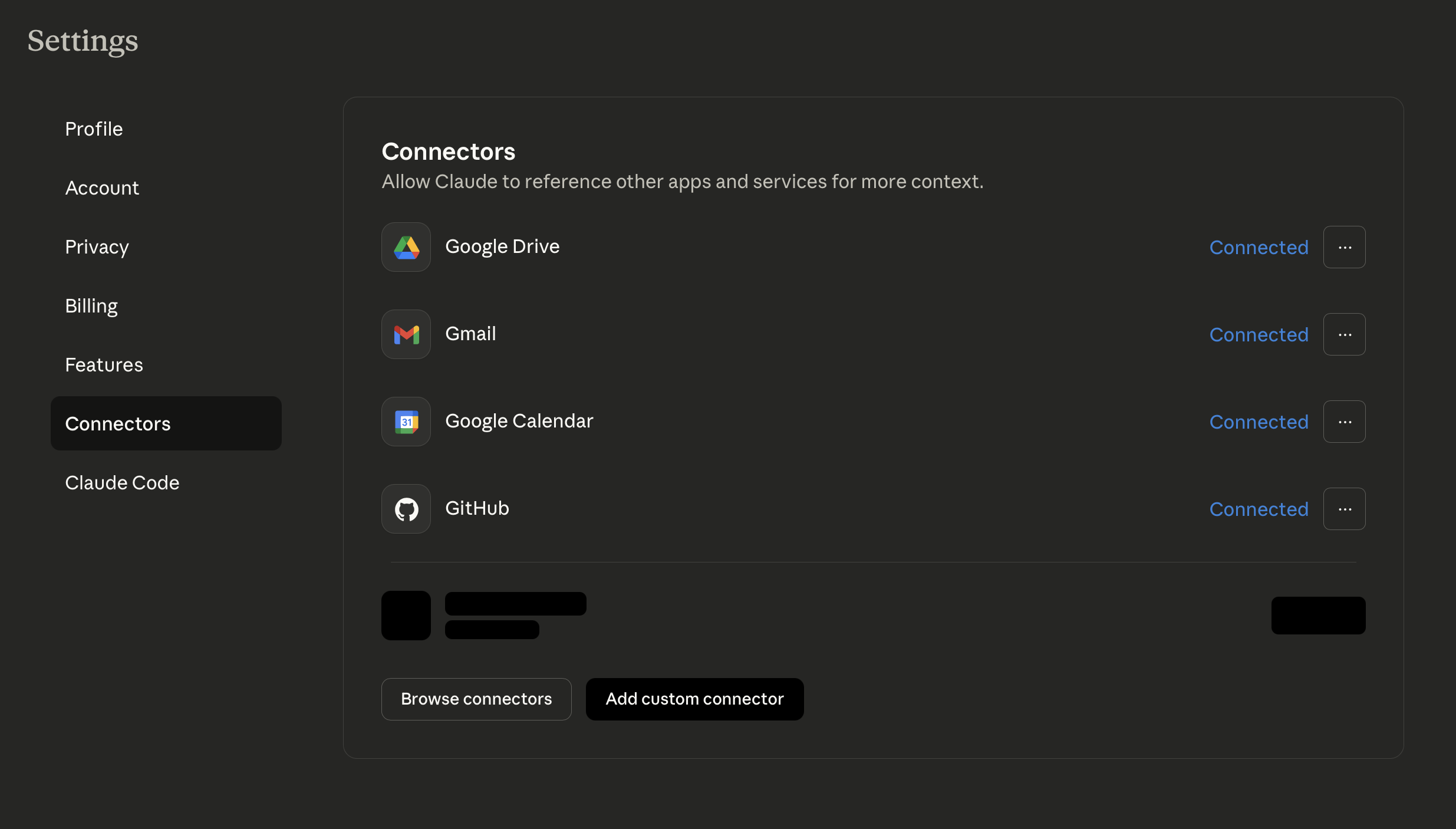
2. Click "Add custom connector"
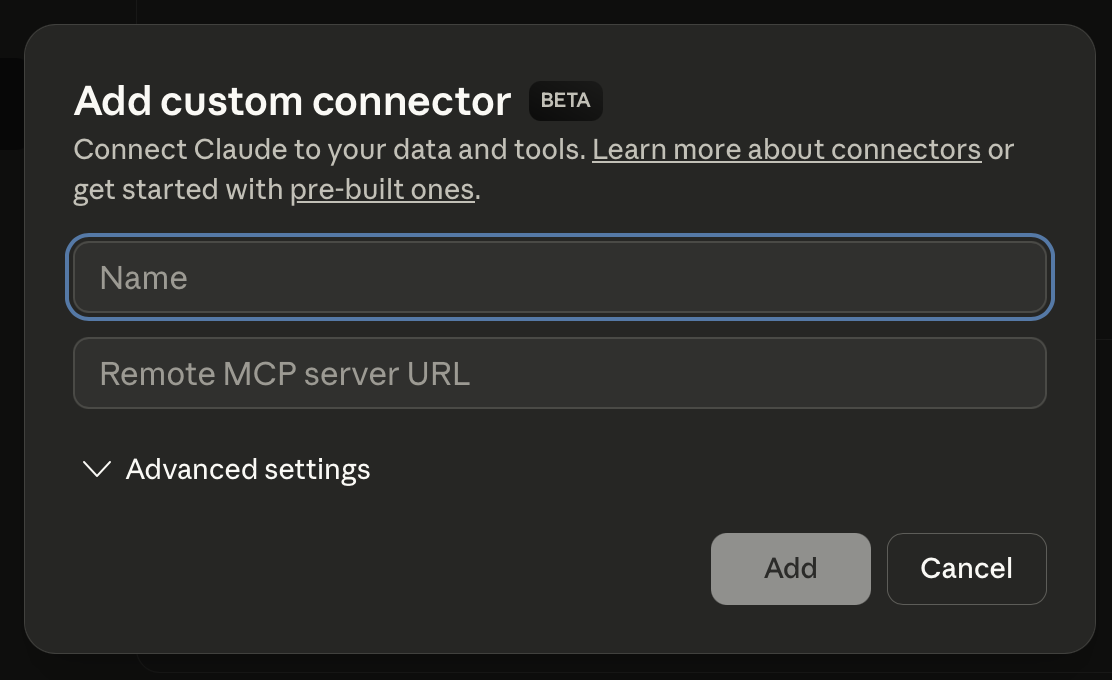
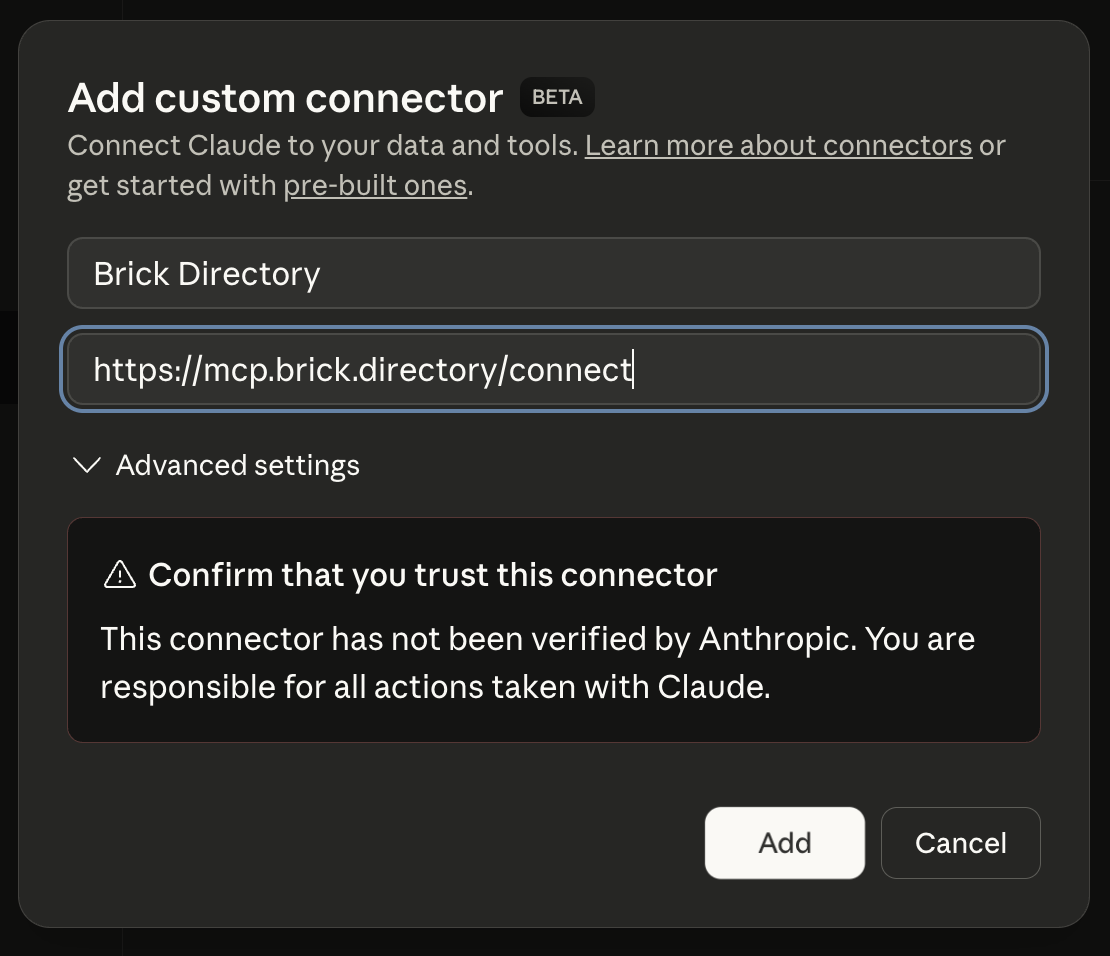
3. Enter the details:
- Name: Brick Directory
- Remote MCP server URL:
https://api.brick.directory/connect
Claude Code - MCP Configuration
For Claude Code, run the following command:
claude mcp add --transport http brick-directory https://api.brick.directory/connect
Then run /mcp command from within Claude Code. Select brick-directory from the list
and select Authenticate. You will be prompted for the login in the browser window and once authenticated,
you will be able to use Brick Directory from your Claude Code.
ChatGPT Configuration
Note: ChatGPT's MCP support is currently in beta and may require specific setup steps.
For ChatGPT Desktop with MCP support, use the generic MCP configuration above.
Alternative: If you're using ChatGPT's Deep Research feature, you may need to configure remote MCP servers through their specific interface.
Check the latest OpenAI Community for updated MCP configuration instructions.
Gemini CLI Configuration
Add this to your Gemini CLI settings.json file using SSE transport:
{
  "mcpServers": {
    "brick-directory": {
      "url": "https://api.brick.directory/connect",
      "timeout": "10m"
    }
  }
}
Or use the command line:
gemini mcp add brick-directory --url https://api.brick.directory/connectThen verify the configuration with:
gemini mcp listSee the official Gemini MCP documentation for more details.
Authentication
Brick Directory uses OAuth2 authentication to securely connect your MCP client.
First-Time Setup
- When you add the Brick Directory MCP server to your AI assistant, it will open a browser window
- Sign in with Google or Facebook (or use your existing session)
- Authorize the MCP client to access your Brick Directory account
- Your MCP client will automatically receive credentials and connect
Connection Persistence
- Your MCP connection will persist for 1 year without requiring re-authorization
- Access tokens are automatically refreshed in the background
- You only need to re-authorize once per year for security purposes
Troubleshooting
- Browser doesn’t open: Check that your MCP client supports OAuth2 authorization
- Already signed in: The authorization will complete automatically using your existing session
- Authorization fails: Try logging out and back in to create a fresh session
- Connection reset: Your MCP client will automatically retry and reconnect
What You Can Do
Once connected, ask your AI assistant about:
- LEGO Sets: Details, parts lists, themes, release years
- Alternative Builds: MOCs (My Own Creations) and alternate builds for any set
- Collection Management: Manage your Rebrickable set lists, part lists, and lost parts
- Build Analysis: Analyze build requirements across your collection
- Parts & Elements: Part identification, colors, availability
- Minifigures: Character details, appearances in sets
- Pricing: BrickLink market prices and availability
- Reviews: User reviews and community opinions from Brickset
- Instructions: Building instruction PDFs and explanations
- Images: Additional set images including alternate angles and detail shots
Example Questions
"Show me the parts list for LEGO set 10030"
"What alternative builds are available for set 75192?"
"What minifigures come with the Millennium Falcon?"
"Find all Star Wars sets released in 2024"
"How much does the Death Star cost on BrickLink?"
"Create a Rebrickable set list called 'Star Wars UCS'"
"Add set 75192 to my Rebrickable collection"
"Show me all my Rebrickable part lists"
"What parts am I missing to build set 10030?"